How to choose a lead system for your Wix site
Choose a lead system for your Wix site with a practical checklist covering forms, lead records, follow-up, exports and reporting.

Original AI-generated conceptual illustration, not a product screenshot.
What should a Wix lead system actually do?
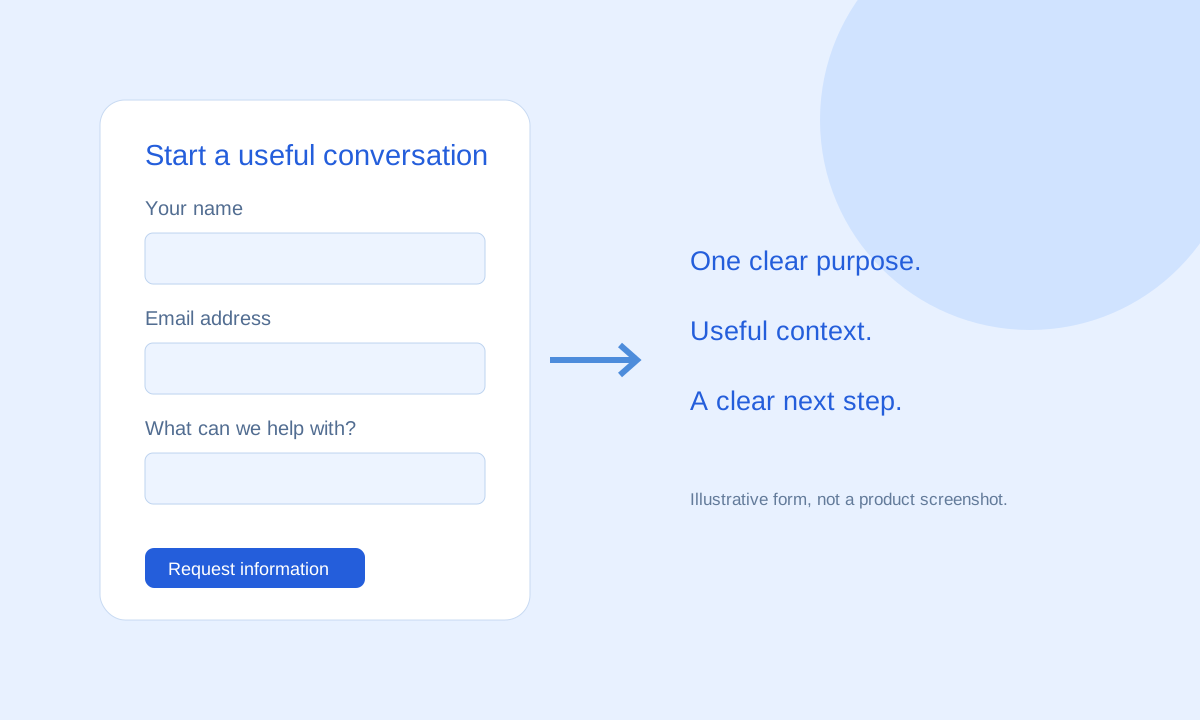
A form captures information. A lead management process gives that information a purpose. For a service business, that might mean turning a request for a quote into a conversation, then recording whether it became a customer. For an agency, it might mean separating new project inquiries from existing client support.
Before comparing software, write down one real inquiry journey. Identify where the visitor starts, what you need to know, who should respond and what counts as progress. This turns a vague search for “more leads” into a concrete requirement that you can test.
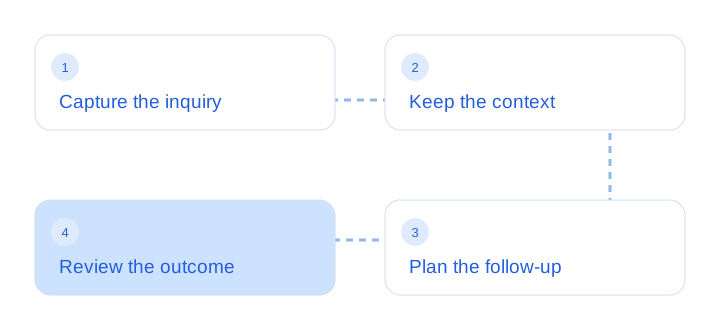
Leadya is positioned around custom forms for Wix sites, lead management, notes and tasks, exports, and reports. Explore the Leadya feature overview to see how these fit together. Confirm your particular setup and plan before committing to a workflow.
Start with your inquiry journey
Think about the next decision your team needs to make. A consultant might need the visitor’s service interest and preferred contact method. A home services company might need the job type and service area. A registration inquiry has a different purpose again.
- Choose one conversion goal. Decide whether the form should generate a quote request, a consultation inquiry or a registration.
- Collect useful context. Ask for the details needed to make a helpful first reply. Save detailed qualification for the conversation when possible.
- Assign responsibility. Decide who checks new inquiries and who covers absences. Do not assume receiving an email means someone owns the lead.
- Define the next step. Agree how you will record contact attempts and the next action, using the tools your setup supports.
For the first part of the journey, use our Wix lead capture form guide. For the handoff after submission, use the lead follow-up workflow.
Compare systems with a practical checklist
| What to evaluate | What to test | Why it matters |
|---|---|---|
| Form fit | Create a realistic form with the fields you need. | The form should support the visitor’s goal and your first response. |
| Lead record | Submit a test inquiry and find all its details. | A notification without context can create extra work. |
| Follow-up tools | Check how you record notes, tasks and the next action. | You need a repeatable process after capture. |
| Data portability | Review available export fields and formats. | Your reporting and record-keeping needs may extend beyond the tool. |
| Reporting | Check what is measured and how results are defined. | Counts are useful only when the underlying definitions are clear. |
| Plan and support | Confirm current pricing, limits, compatibility and support. | Features and installation requirements can change. |
A native Wix Forms workflow may be enough if your needs are straightforward. Wix’s own documentation describes storing submissions and configuring notifications. A separate lead system is worth evaluating when you want a different form experience or a more deliberate process for managing those inquiries. Compare both against your actual requirements.
Avoid assuming that an app’s presence in an app marketplace guarantees support for every Wix editor, plan or existing form. Check the listing and ask the developer about your exact configuration.
Run a small pilot before switching
Test one page and one form before changing all your lead capture points. Use a clearly labeled test inquiry, then check the published desktop and mobile experience. Confirm that the submission reaches the expected destination and that you can locate the same inquiry in the lead record.
Next, rehearse the work after submission. Can a team member understand the request without searching an email chain? Is it clear what to do next? Can you distinguish an open opportunity from one that has been closed? Record any gaps before rolling out more forms.
Keep the old workflow available until you have checked the replacement. When removing or exporting test information, follow your organization’s normal data-handling process. A pilot should validate the workflow without exposing real customer details unnecessarily.
Measure fit with outcomes, not form volume
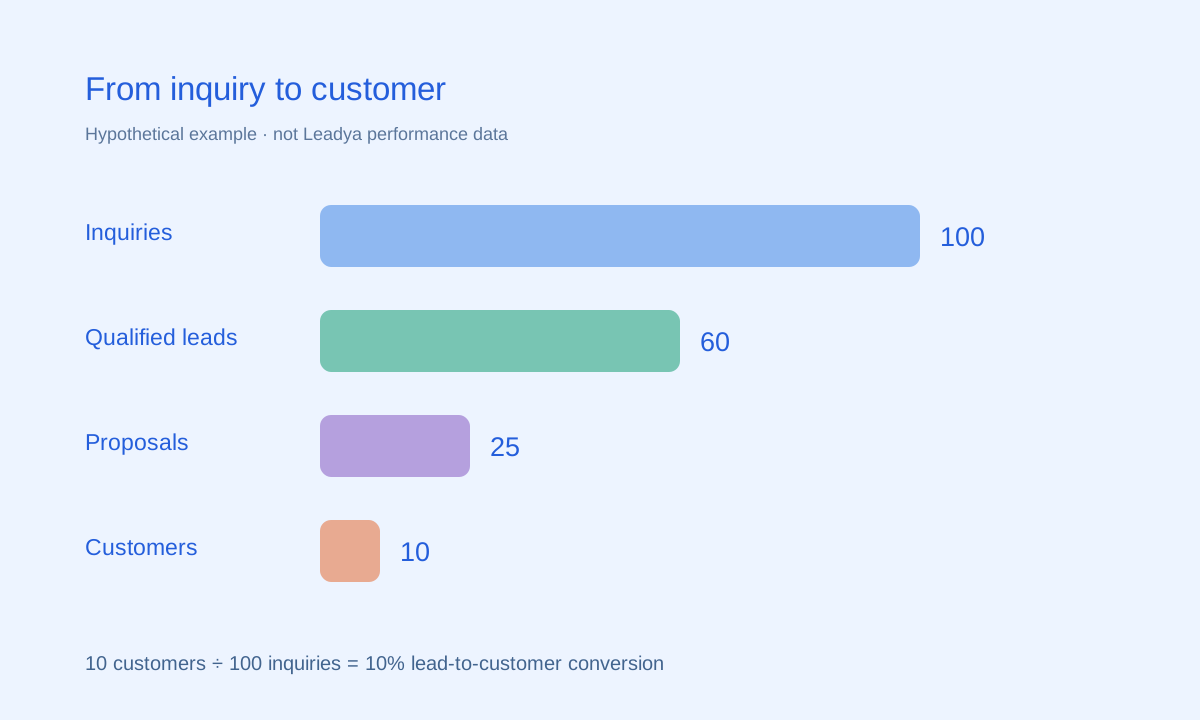
More submissions are not automatically more useful leads. Agree what a qualified lead means, choose a consistent reporting period and review whether inquiries lead to meaningful conversations. Use the Wix lead conversion tracking guide to separate form conversion from lead-to-customer conversion.
Review the process with the people who handle inquiries. Their experience can reveal missing context, unclear ownership or repetitive work that a dashboard alone does not explain. Choose the system that supports those daily decisions.
Common questions
Is a lead system the same as a contact form?
A contact form captures a submission. A lead system also supports the process after submission, such as reviewing the inquiry, recording context and planning follow-up. The exact tools depend on the product and plan.
Do I need a separate CRM for a Wix site?
It depends on your workflow. Start with your form, record-keeping and follow-up requirements, then compare Wix’s native tools and any additional system against those requirements.
What should I check before installing Leadya?
Confirm the current installation link, editor compatibility, pricing, field requirements and how submissions and notifications will reach your account. Then test one published form end to end.
Sources & scope
Product descriptions refer to Leadya’s feature and setup information. Workflow recommendations and examples are editorial guidance; verify current capabilities and plan details for your own account.