Wix lead capture forms that make the next step clear
Plan better Wix lead capture forms with useful fields, clear calls to action, accessible labels and a practical submission testing checklist.
Explanatory workflow diagram.
Give each form one clear job
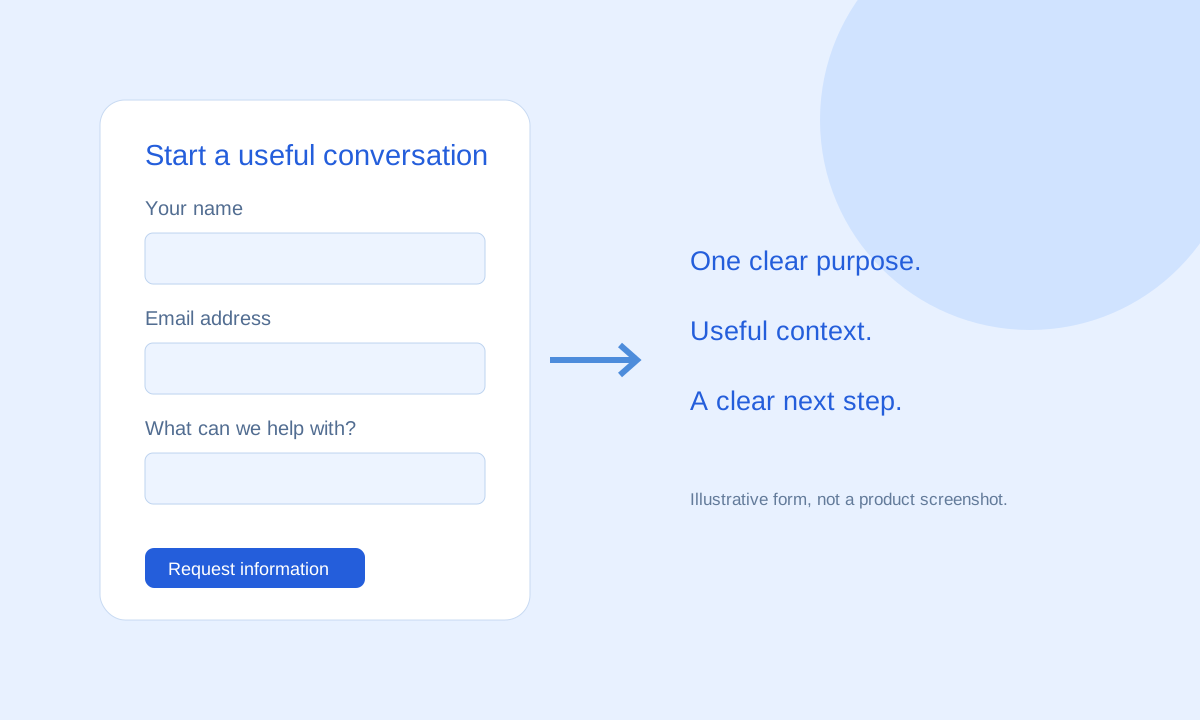
A generic contact form often tries to serve several audiences at once. A prospective customer may want a quote, while an existing customer needs support. If both arrive without context, your team has to ask more questions before helping either person.
Match the form to the page’s promise. A service page can invite a quote request; a product information page can invite setup questions. Keep the headline, fields and submit button aligned with that specific task. If a page needs more than one route, make the distinction clear before the visitor starts typing.
Leadya’s custom contact forms for Wix are one part of a broader workflow. See the form and lead management features, then decide what context your team needs to make the first response useful.
Choose fields by the decision they support
Every field asks the visitor to do some work. That work is worthwhile when it helps you understand the request or respond through the right channel. Do not collect information simply because it might become useful later.
| Field | When it helps | Design consideration |
|---|---|---|
| Name | You want to address the visitor personally. | Use one name field unless separate parts are necessary. |
| You will reply by email. | Use an email input and explain how the address will be used. | |
| Phone | The requested next step involves a call. | Make it optional when a call is not necessary. |
| Service interest | Several services need different responses. | Use clear choices that match your website language. |
| Message | The visitor needs to explain a project or question. | Add a short prompt about the context that would help. |
For example, a project inquiry could ask for a name, an email address, a service choice and a short description. A call request may need a phone number instead. These are planning examples, not a fixed recipe or a guarantee of better conversion.
For sensitive information or regulated services, review what you collect and how it is handled with the appropriate people in your organization. A general inquiry form should not invite passwords, payment details or other unnecessary private information.
Make the form easy to understand and use
Use a visible label for each field. Placeholder text can provide an example, but it should not be the only label because it disappears during entry. Make required fields clear before the visitor reaches an error.
- Use a specific button. “Request a quote” explains the action more clearly than an unexplained “Submit.” Match the wording to what your business will actually do.
- Explain the next step. Tell visitors whether the form requests information, starts a discussion or completes a registration. Do not promise an immediate response unless you can deliver it.
- Keep errors local and useful. Explain which field needs attention and how to fix it. Preserve valid entries where the form supports that behavior.
- Test keyboard and mobile use. Check focus visibility, field spacing, text size and the ability to complete the form without horizontal scrolling.
Place the form where the decision happens
A visitor who has just read your service details needs a relevant next action. Place the call to action near the information that helps them decide: what you offer, whom it suits and what the request involves. Avoid making the visitor return to the top navigation to continue.
Longer guides can offer a quieter next step, such as exploring features or reading a setup guide. Visitors who already understand the product can move directly toward installation. This creates a useful journey without treating every reader as ready to buy.
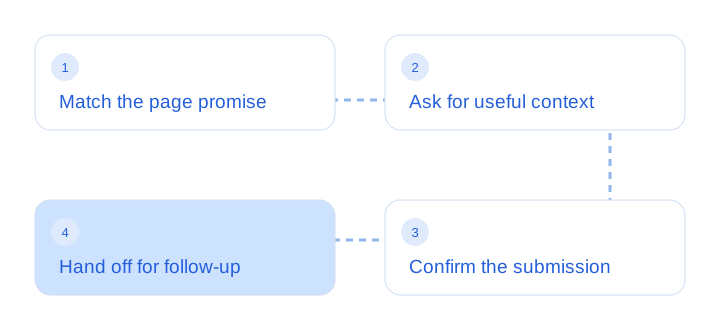
A form is only the start of lead management. Plan how your team will follow up with Wix leads before sending more traffic to it.
Test capture and delivery together
- Open the published page on desktop and mobile, not only in an editor preview.
- Submit a clearly labeled test inquiry with the fields a real visitor would use.
- Verify the confirmation or success message and the absence of accidental duplicate submissions.
- Check the destination record and the expected email notification separately.
- Rehearse the first response and record the next action using your chosen workflow.
Notification settings for native Wix Forms are managed through Wix’s tools; a third-party app can have a different setup. Follow the documentation for the form you actually use. Do not assume that configuring one automatically configures the other.
After testing, measure form submissions and meaningful outcomes with consistent definitions. Our conversion tracking guide explains the difference. If you are still comparing tools, return to the Wix lead system checklist.
Common questions
How many fields should a Wix lead capture form have?
Use the fields needed for the form’s specific purpose and your first response. There is no universal ideal count. Start with essential contact and inquiry context, then test whether additional fields help your workflow.
Should I require a phone number?
Require it when the visitor’s requested next step depends on a call. If you can respond by email, consider whether an optional phone field is more appropriate.
Why can a form submit successfully without an email arriving?
Saving a submission and sending a notification are separate steps. Check the submission destination, notification recipients and the relevant app’s settings before assuming the inquiry was lost.
Sources & scope
Product descriptions refer to Leadya’s feature and setup information. Workflow recommendations and examples are editorial guidance; verify current capabilities and plan details for your own account.